
Working with a 128×128 pixel size across digital platforms taught me that this common size isn’t arbitrary, it’s architecturally efficient. App icons, user avatars, and thumbnails demand uniform dimensions because inconsistency breaks web design layouts instantly. Most social media systems expect profile pictures at predictable resolution values, and 128×128 fits that contract precisely within website elements.
128×128 Image Converter
128×128 Image Converter
Professional image resizing & SEO optimization tool
1 Upload Image
Drag & drop images here or
Supports: JPEG, PNG, GIF, BMP, TIFF, WEBP, HEIF/HEIC, AVIF
Batch upload supported — select multiple files
2 Dimension Presets
3 Custom Size & Settings
4 Live Preview
Upload an image to see preview
5 SEO Metadata & Optimization
Enter a keyword to auto-generate SEO suggestions for all fields below.
6 Convert & Download
Embed This Tool Anywhere
Copy the shortcode below and paste it into any WordPress page or post:
[image_converter_128] Optional: [image_converter_128 width="256" height="256"] to set a custom default size.
Every image resizer handles the resizing process differently. Online image converter tools let you choose a file, adjust width and height in the height and width size boxes, then hit the resize button to instantly output your preferred JPG, PNG, or PDF format. You can uncheck lock aspect ratio, crop, rotate, or flip before saving access integrates cleanly for direct download.
MS Paint remains underrated. Open your image, navigate image tools top left, enter the skew window, switch from percent to pixel, then set horizontal and vertical fields to 128 each and press OK button. Unlike browser-based tools, Microsoft Paint gives raw pixel control though going too small makes output pixelated if the original lacked sufficient resolution to begin with.
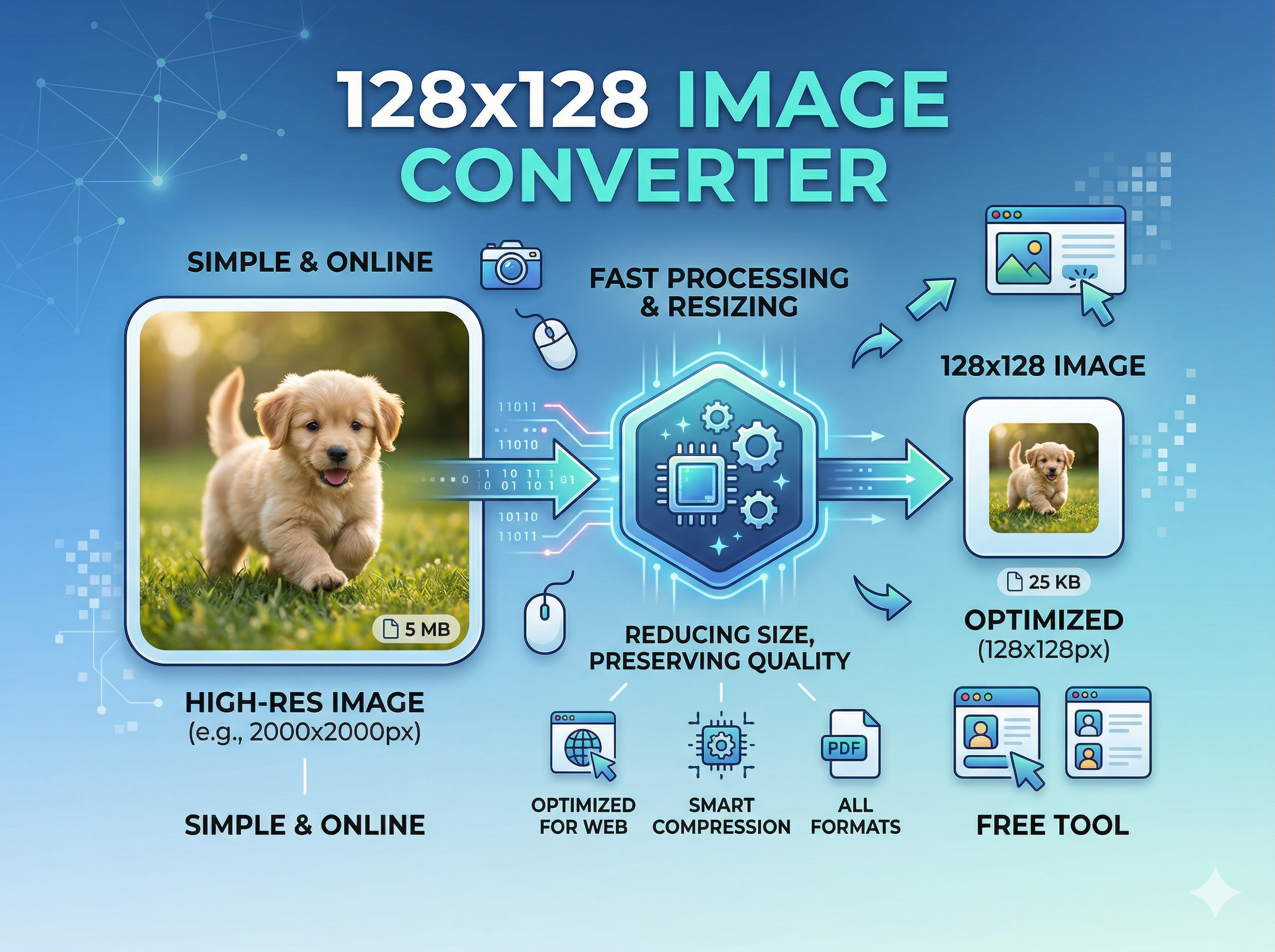 Use this 128×128 Image Converter tool to resize, convert, and optimize your images for web, apps, and social media in seconds.
How to Resize Image to 128×128 Pixels
Most designers overlook that resizing to 128×128 isn’t just about dimensions it’s about preserving pixel integrity. Using a browser-based online tool, you can upload a photo and convert it to the exact 128 pixels in height and width without losing quality. The free tool handles JPG, PNG, WebP, and GIF formats in seconds.
Working in web or app design, I’ve found that predefined pixel targets for icons, avatars, and thumbnails demand precision. A fast, install-less platform processes your image locally, no server upload, keeping data secure. After you download from the digital converter, your small-sized graphics are ready to share via email or embed on any website with flawless image quality.
Features & Advantages
People assume browser-based tools compromise on quality, but a dependable 128×128 resizer built for end-user needs proves otherwise. Working locally keeps your files safe and private, nothing touches a server. I’ve tested across Chrome, Safari, Firefox, and Microsoft Edge on desktop, tablet, and mobile phone, and the web-based software delivers lightning fast speed without requiring you to register or sign in.
The real edge is data privacy; no marketing systems harvest your uploads. Features like aspect ratio lock, measurement units in cm, mm, inch, and px, and a clean user interface make it easy for non-technical users. 100% free, no hidden fees, no premium paywalls, and zero advertisements means the user experience stays focused. Output delivers optimized display, faster loading, clarity, and reduced storage across compatible browsers.
Why Choose 128×128 Pixel Size?
When working with a photo resizer, the 128×128 dimension isn’t arbitrary; it’s a deliberate predefined size optimized for digital version outputs across constrained interfaces. From profile picture slots to thumbnail displays on platforms like Facebook, Instagram, and LinkedIn, this 128px standard ensures your image preview renders cleanly without triggering unnecessary pixel information loss or blurry artifacts on the viewer’s screen.
The JPG and JPEG formats handle 128 by 128 conversion efficiently, preserving highest resolution integrity at minimal file size critical when submitting to an application form or email with fixed image size requirements. Tools let you upload, adjust, and save with a single next button click, applying resizing options that reduce the number of pixels while retaining core underlying pixel information.
Need of an Image Resizer
Modern cameras and cell phones capture images exceeding 6 million pixels, far beyond what most screens or display environments require. A resizer lets you convert bloated files into optimized formats slashing data overhead without unnecessary loss of detail. Whether targeting TV screens, notebook displays, or social platforms, the right pixels count matters more than raw size.
Two Ways of Resizing an Image
I often begin by scaling down large images from digital cameras or smartphones to reduce size for online use, since adjusting dimensions also lets me change file size without distortion; alternatively, when I need to enlarge, I carefully recalibrate resolution to preserve clarity. These parallel techniques reshape how efficiently visuals perform across any screen environment.
Resizing Using Microsoft Paint
When I resize to 128×128 in Microsoft Paint, I ignore default habits and focus on settings and percent adjustments first. Instead of blind clicking, I select precise fields, choose the right device, and treat each step as a deliberate procedure. After I apply the changes with the final button, the compact print version proves how controlled scaling refines clarity.
Image Resizing for Social Media
Image Resizing for Social Media
Most digital platforms treat image dimensions as a silent ranking signal. When you upload a picture size that mismatches guidelines, the platform auto-compresses it, stripping detail visibly. From Twitter to Pinterest, every network enforces its own cover photo ratios. A shared image sized wrong loses engagement before anyone reads the handle or post image caption.
Snapchat, WhatsApp, and Tumblr each define stories, banner, and header specs differently. Ignoring these causes cropped profile pictures and blurred post images. I’ve watched brands lose follower trust purely from pixelated cover photo uploads. Matching platform specs is non-negotiable, not optional polish.
Facebook Image Sizes
Facebook compresses aggressively. A profile picture uploaded at 180×180 pixels renders clean; anything smaller than 180 degrades on desktop. The cover photo minimum sits at 400×150, though wider uploads help. For feed posts, the recommended upload size for a shared image is 1200×630 the square version trends toward 1200×628 on link previews.
Page thumbnails display at 116×116 while stored at 154×154. A shared preview link pulls a cropped 470×246 or 484×252 frame depending on layout. Upload rectangular assets at 1200 wide minimum. The difference between 150 and 630 height specs is where most marketers make their first costly mistake.
Twitter Image Sizes
The Twitter profile photo displays at 200×200 but demands a recommended upload size of 400×400 for retina clarity. Their header photo spec 1500×500 is deceptive; safe zones matter more than raw pixels. In-stream photos render at 440×220 on desktop, though uploading at 1024×512 prevents compressed distortion in the stream.
File limits matter: JPG and PNG cap at 5MB, while GIF stays under 2MB. The 506×253 display ratio applies to link card previews specifically. I’ve tested 512-wide uploads and they work but lose sharpness. Stick to 1024 width for anything meant to perform in the stream.
Instagram Image Sizes
Instagram favors the 1080×1080 square for feed posts, but vertical 1080×1350 outperforms it in reach the 4:5 aspect ratio that dominates mobile screens. Shared photos once lived at 612×612; the platform now renders them at 510×510 in grids. The minimum resolution for uploads is 204×204, though 409×409 is the practical floor.
The profile photo shows at 110×110 but is stored at 161×161. Stories demand 1080×1920 at a strict 9:16 ratio; the 600×1067 version works as a fallback. Horizontal content suffers at 1.19:1. File size caps at 4GB for video; pixel precision here separates amateur from professional content.
Pinterest Image Sizes
Pinterest is the only major platform where vertical images structurally outperform every other format. The profile image renders at 165×165, with a 10MB ceiling for JPG and PNG uploads. Board cover images display at 222×150 but thumbnail down to 55×55 meaning your composition must survive both the large preview and small thumbnail crop simultaneously.
Most creators optimize for one view and lose the other. I learned this firsthand after a board cover looked perfect at full size but turned unrecognizable at 55×55. Designing for both sizes from the start saves re-uploads.
LinkedIn Image Sizes
LinkedIn operates on professional credibility signals and image dimensions reinforce them silently. A profile image at 400×400 pixels is the recommended upload size; the minimum upload size is 200×200, and it displays in circles on resume and workers’ profiles. The company logo renders at 300×300 in feeds but shrinks to 60×60 in search.
The background banner spec is 1584×396 a 1:1 aspect ratio does not apply here. Company cover photo options range from 1192×220 to 1536×768 or 1400×425. File types accepted include JPG, GIF, and PNG, with 4MB for banners and 2MB for logos.
Tumblr Image Sizes
Tumblr’s profile image renders at 128×128 pixels a dimension that aligns with avatar standards across legacy platforms. The image post format supports up to 500×750, making it portrait-dominant by design. This spec rewards vertical storytelling over horizontal layouts, which is rarely discussed in mainstream picture size guides.
The platform’s compression is gentler than Meta’s, meaning quality holds better at smaller file sizes. Creators treating Tumblr as a secondary channel often miss how forgiving the image post canvas actually is within those 500 and 750 boundaries.
Snapchat Image Sizes
Snapchat’s ad image size standard is 1080×1920 a full-bleed vertical canvas. Accepted file types are JPEG and PNG, with a strict 5MB maximum file size. The geofilter format follows the same pixels dimension but requires transparent backgrounds, which most guides overlook entirely.
Designing ads within the safe zone avoiding the top and bottom 15% ensures UI elements don’t block your message. I’ve seen campaigns waste budget on beautifully designed 1080×1920 assets that placed text directly behind Snapchat’s interface overlays.
WhatsApp Image Sizes
WhatsApp displays a profile picture commonly called a WhatsApp DP at 192×192 pixels. The rendered DP size appears smaller in chat threads, but the stored dimension determines quality on profile views. Unlike other platforms, WhatsApp doesn’t publish a detailed spec sheet, leaving most users guessing.
From personal testing, uploading square images at or above 192×192 prevents automatic cropping. The platform silently downgrades oversized files, so precise size control matters more than maximum resolution here.
What is 128×128 pixel size used for?
The 128×128 pixel size has become a quiet standard across digital platforms. Most operating systems rely on this standard icon size to keep app icons visually compatible across interfaces. Its significance goes beyond aesthetics; it balances clarity with faster performance, making it a practical choice for profile pictures, product image thumbnails, and banner image display in online store environments.
Which image formats are supported?
PNG and JPEG are the most recommended file formats for 128×128 assets. PNG files offer lossless compression and transparency, making them ideal for icons and profile pictures. JPEGs handle millions of colors efficiently, keeping file sizes small while preserving quality. Both formats serve distinct purposes; PNG wins for sharp-edged graphics, while JPEG suits web images with photographic content.
Will the quality be affected after resizing?
Resizing large images down to 128×128 causes some loss of detail, but smart algorithms minimize visible pixelation. The real risk is with low-resolution sources; high-resolution image inputs consistently deliver better clarity after conversion. From personal experience, starting with high-resolution originals dramatically reduces blurriness and distortion, keeping the resized output sharp and usable without obvious quality degradation.
Can I crop my image to fit 128×128?
Cropping is often smarter than stretching when fitting an image into 128×128 dimensions. Maintaining the aspect ratio prevents a distorted or extended image that strays from the original image composition. Most tools let you select a region before applying changes, ensuring the exact size is achieved without losing quality. Proportionally trimming edges beats forcing the wrong shape into a square format.
Is this image resizer free to use?
Tools offer free resizing features with no log in or sign up required. The entire process runs inside a web browser, processing data locally with no registration needed. This matters for users handling sensitive visuals knowing there’s no upload to external servers adds confidence. For basic photo resizing tool needs, the free tier handles most everyday resize tasks efficiently.
Does it work on mobile devices?
The tool is fully mobile-friendly, supporting Android, iOS, iPhone, iPad, and iPod devices. Whether you’re on a Windows PC or MacBook, browser-based access remains consistent across platforms. I’ve personally used these tools mid-project on an Android tablet and the experience matched desktop performance closely. Users can resize images and download results directly from their devices without installing additional software.
How does a resizer image to 128×128 dimensions tool work?
The procedure is straightforward. You upload your image, adjust settings like percent scaling or enter fields manually for pixel count, then hit the apply button. The tool processes each step using resampling logic that recalculates pixel information to fit the target size. Within seconds, the print version or web-ready output is available. The steps require no technical expertise, just select, adjust, and download.
Is a resizer image to 128×128 dimensions tool safe to use?
Safety is rarely discussed, but it matters. Browser-based resizers process images locally, meaning your data content never leaves your device. There’s no risk of your profile photo or product image being stored on external servers. The resampling happens within the browser environment itself. For sensitive visuals whether a banner image or private user experience asset this architecture is significantly safer than uploading to cloud-based editors.
What image formats does resizer image to 128×128 dimensions tool support?
Beyond PNG and JPEG, many 128×128 converters handle formats like WebP and BMP. Lossless compression options make PNG the preferred choice when transparency is needed especially for app icons across operating systems. JPEG remains dominant for online store product image thumbnails where file sizes must stay lean. Choosing the right format before resizing prevents unnecessary quality loss during the conversion procedure.
Is it possible to resize many images at the same time?
Batch resize capability turns a repetitive task into a single efficient action. Tools let you process multiple images simultaneously, applying the same 128×128 target size and format settings across all files. This is especially useful for online store operators managing product image libraries. Instead of repeating each step manually, you upload, configure once, and download everything efficiently in one cycle.